DockLock Plus Shortcuts Integration
For URL scheme integration, see URL Scheme Guide.
This guide explains how to use macOS Shortcuts and Terminal commands to interact with DockLock Plus via custom App Intents.
1. Prerequisites
- macOS 13.0 or later
- DockLock Plus must be installed and launched at least once.
- Enable Accessibility for DockLock Plus in System Settings › Privacy & Security › Accessibility.
2. Overview of Available Intents
DockLock Plus provides the following App Intents for Shortcuts and scripting:
| Title | Description | Parameters | Returns |
|---|---|---|---|
| Enable DockLock Plus | Enables the DockLock Plus engine, locking the Dock to your selected display. | — | Void |
| Disable DockLock Plus | Disables the DockLock Plus engine, restoring default Dock behavior. | — | Void |
| Enable Dock Follows Mouse | Enables automatic Dock movement following the mouse. | — | Void |
| Disable Dock Follows Mouse | Disables automatic Dock movement following the mouse. | — | Void |
| Is Dock Follows Mouse Enabled? | Returns true if Dock Follows Mouse feature is enabled. | — | Bool |
| Is DockLock Plus Enabled? | Returns true if the DockLock Plus engine is enabled. | — | Bool |
| Launch DockLock Plus | Starts the DockLock Plus app if not running. | — | Void |
| Quit DockLock Plus | Quits the DockLock Plus app. | — | Void |
| Move Dock to Display | Moves the Dock to a specific display by name. | Display Name | Bool |
| Get Current Dock Display | Returns the name of the display where the Dock is currently located. | — | String |
| Move Dock to Adjacent Display | Moves the Dock to the display adjacent in the given direction. | Direction (left/right/up/down) | Bool |
| Move Dock to Display at Coordinate | Moves the Dock to the display that contains the specified coordinate. | X Coordinate, Y Coordinate | Bool |
| Allow Dock on Display | Allows Dock to appear on a specific display by name. | Display Name | Bool |
| Disallow Dock on Display | Prevents Dock from appearing on a specific display by name. | Display Name | Bool |
| Allow Dock on Display at Coordinate | Allows Dock on the display that contains the specified coordinate. | X Coordinate, Y Coordinate | Bool |
| Disallow Dock on Display at Coordinate | Prevents Dock on the display that contains the specified coordinate. | X Coordinate, Y Coordinate | Bool |
| Enable Dock Follows Active Window | Enables Dock following the currently active window. | — | Void |
| Disable Dock Follows Active Window | Disables Dock following the active window. | — | Void |
| Is Dock Follows Active Window Enabled? | Returns true if Dock Follows Active Window feature is enabled. | — | Bool |
| Enable Dock Follows Apps When Active | Enables Dock to follow specific apps when their window is active. | — | Void |
| Disable Dock Follows Apps When Active | Disables Dock following specific apps when their window is active. | — | Void |
| Is Dock Follows Apps When Active Enabled? | Returns true if Dock Follows Apps When Active feature is enabled. | — | Bool |
If you have multiple displays that share the same name, it is recommended to use coordinate-based intents to ensure the Dock moves to the correct display.
Coordinates use (0,0) at the top-left corner of the main display; X increases to the right, and Y increases downward.
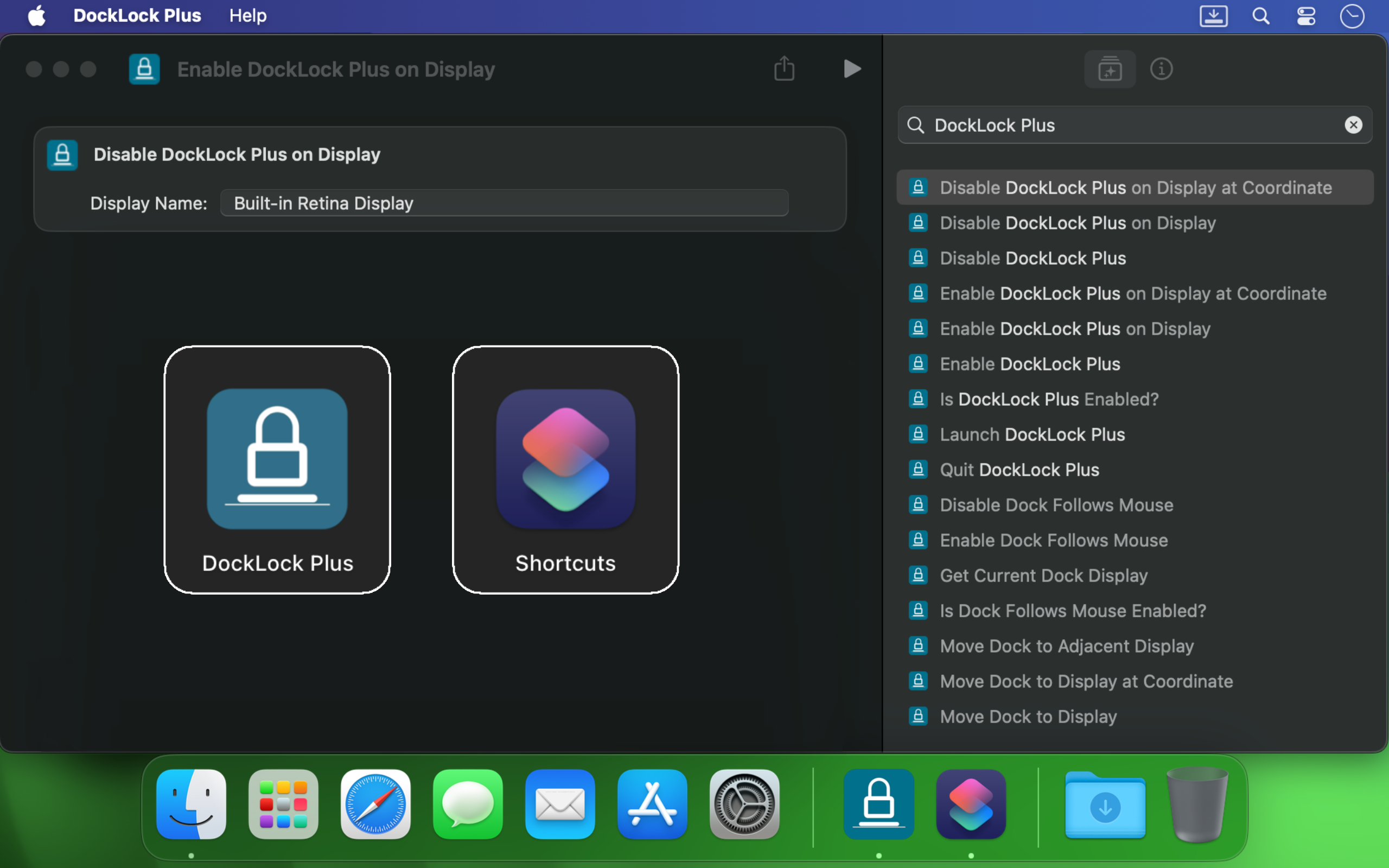
3. Installing Intents in Shortcuts
- Open the Shortcuts app.
- Click "+" to create a new shortcut.
- In the Actions sidebar, search for DockLock Plus.
- Expand the DockLock Plus section to view the available App Intents.
- Drag the desired Intent into your workflow.
- If the Intent has parameters (e.g.
Move Dock to Display,Move Dock to Adjacent Display,Move Dock to Display at Coordinate), fill in the fields. - Name and save your shortcut.
4. Example Shortcuts
Here are a few representative shortcut workflows to demonstrate how to combine DockLock Plus intents:
-
Lock and Unlock Dock
- Enable: Drag Enable DockLock Plus intent into your shortcut to lock the Dock.
- Disable: Drag Disable DockLock Plus intent to restore default behavior.
-
Toggle Dock Follows Mouse
- Drag Enable Dock Follows Mouse and Disable Dock Follows Mouse intents into a single shortcut to quickly switch the feature on or off.
-
Move Dock by Display Name
- Add Move Dock to Display intent.
- Set Display Name to your target monitor (e.g. “External Monitor”).
-
Move Dock to Adjacent Screen
- Add Move Dock to Adjacent Display intent.
- Choose Direction (Left/Right/Up/Down) to shift the Dock one screen over.
-
Coordinate‑based Move
- Add Move Dock to Display at Coordinate intent.
- Enter X Coordinate and Y Coordinate to target a specific pixel on your combined desktop.
-
Enable/Disable DockLock Plus on Specific Displays
- Enable by Name: Drag the Allow Dock on Display intent, set Display Name.
- Disable by Name: Drag the Disallow Dock on Display intent, set Display Name.
For coordinate-based control, you can drag the corresponding Allow Dock on Display at Coordinate and Disallow Dock on Display at Coordinate intents, specifying X/Y.
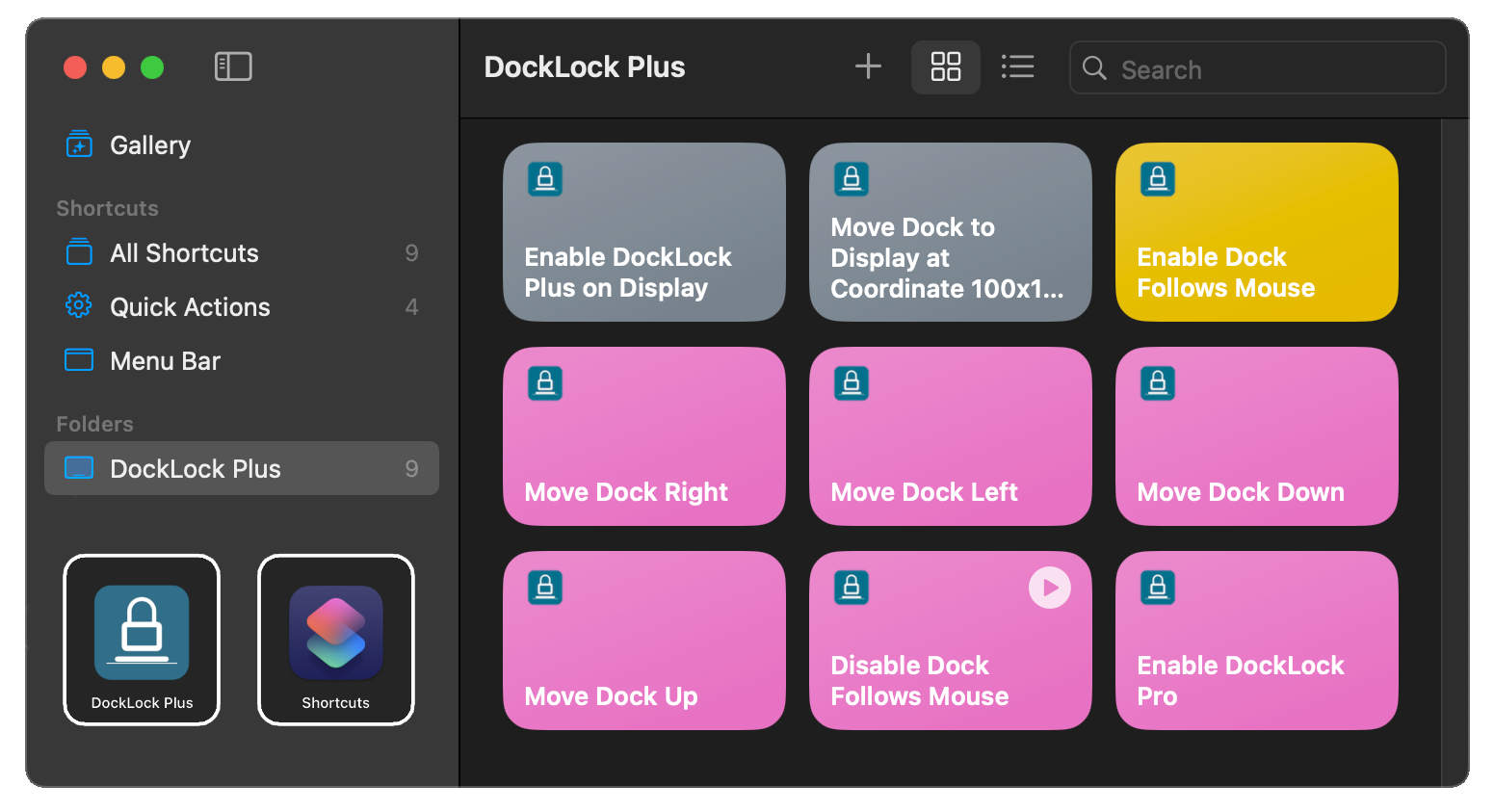
Feel free to combine these steps in any order to create custom workflows that suit your needs.
5. Automations
You can trigger these shortcuts automatically via the Automation tab in Shortcuts:
- Switch to Automation.
- Click Create Personal Automation.
- Choose a trigger (e.g. App Launch, Time of Day, When Display Changes).
- Add a Run Shortcut action and select your DockLock sequence.
- Toggle Ask Before Running as desired.
- Save.
You can also use Automations to automatically switch single-screen Dock hiding mode on or off.
To do this, use the Allow Dock on Display at Coordinate or Disallow Dock on Display at Coordinate intents, specifying coordinates like X=1, Y=1 to allow or disallow the Dock on the main screen.
This can be useful to automatically hide the Dock when starting a meeting or showing it again afterward.
See FAQ: Hide Dock During Meetings or Screen Sharing for more details.
Menu Bar & Tray Integration
You can pin any shortcut you create to the menu bar (or system tray) for one‑click access:
- Open the Shortcuts app and locate your custom DockLock Plus shortcut.
- Right‑click (or Control‑click) the shortcut and choose Pin in Menu Bar.
- The shortcut’s icon will appear in the menu bar—click it anytime to run your DockLock Plus action directly.
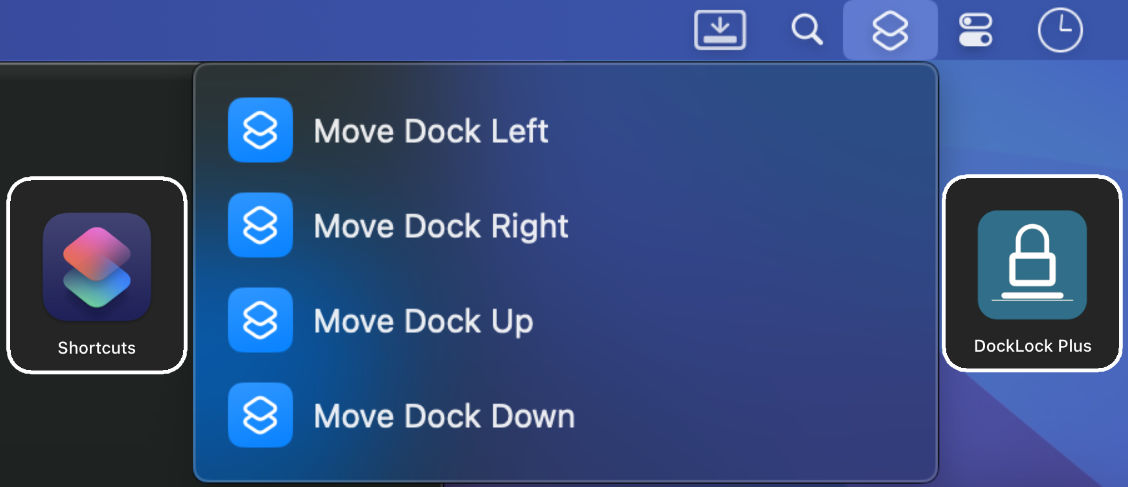
This allows you to trigger DockLock Plus shortcuts without opening the Shortcuts app.
6. Terminal Usage
The built‑in shortcuts CLI lets you run your DockLock shortcuts from scripts:
# List your shortcuts
shortcuts list

# Run "Lock My Dock"
shortcuts run "Lock My Dock"
Integrate into shell scripts, launchd, or other automation tools.
Note: Before assigning a hotkey, make sure you have already created the shortcut using the steps in Installing Intents in Shortcuts.
7. Triggering Shortcuts via Hotkey
- In the Shortcuts app, open the shortcut you want to assign.
- Click the “(i)” icon in the top right corner to open Details.
- Under Run with, click the key field and press your desired hotkey.
- Uncheck Provide Output.
- Set Receive input from to None.
- Close the Details pane.
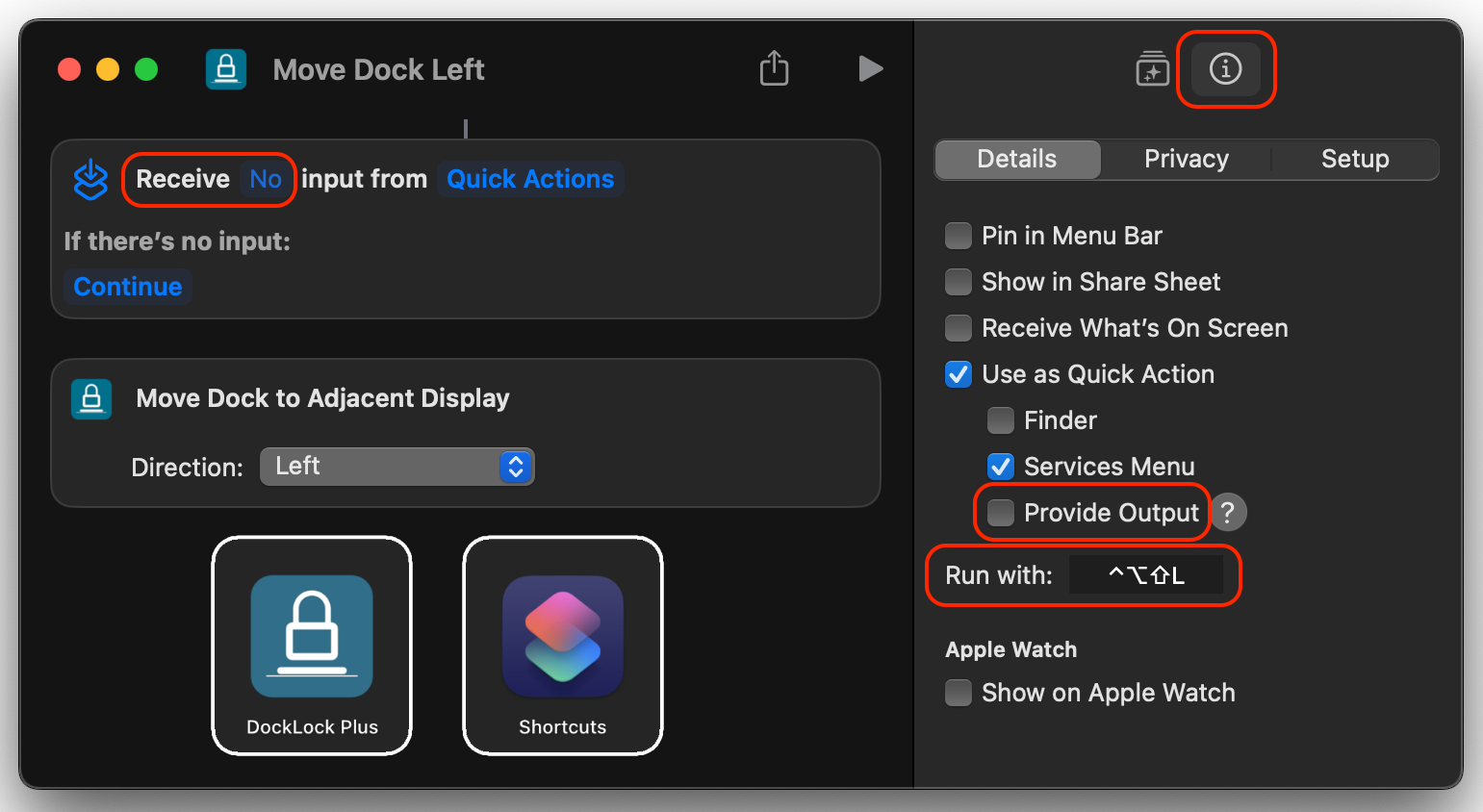
Note: Choose a unique hotkey combination. If another app uses the same hotkey and is active, it will take priority and your shortcut will not run.
8. Siri Integration
You can also trigger any of your DockLock Plus shortcuts using Siri. Just say:
“Hey Siri, Move Dock Left”
For the first time ever, DockLock Plus lets you move the Dock using Siri-an action that was never possible before on macOS.
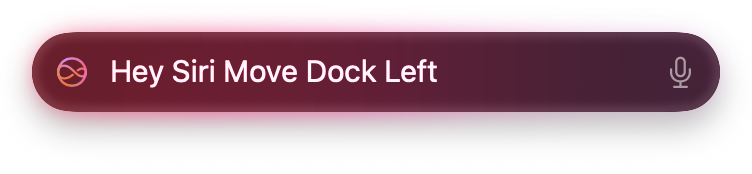
Note: Before using Siri to trigger a shortcut, ensure you have already created the shortcut using the steps in Installing Intents in Shortcuts.
9. Troubleshooting
- Permissions: Verify DockLock Plus is granted Accessibility in System Settings.
- Intent Availability: Restart the Shortcuts app after installing/updating DockLock Plus.
- Parameter Validation: Confirm display names and coordinates match your setup.
- Logs: Enable debug logging in DockLock Plus Preferences to diagnose failures.